
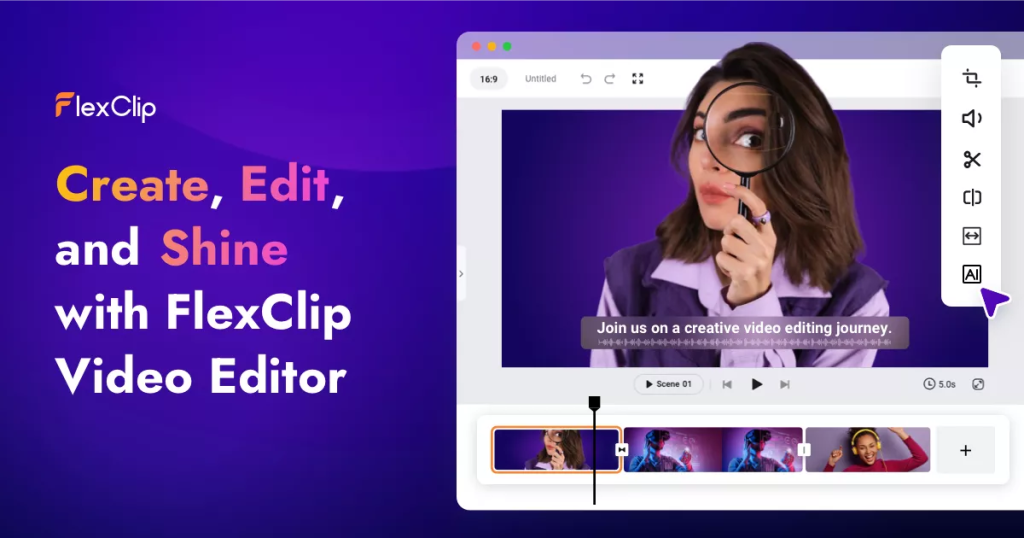
Bottom line: FlexClip is a browser video editor with a large template library and a tidy set of AI helpers — text-to-video, auto subtitles, text-to-speech, and a script writer. The free plan is a real plan, not a trial, but every free export is 720p with a FlexClip watermark, so think of free as a full test drive rather than a publishing tier.
What does FlexClip actually do?
FlexClip runs entirely in the browser: pick from thousands of templates or start blank, then drag, trim, add text, music, and stock media on a simple timeline. The AI tools sit alongside the editor — generate a video from a prompt or an article link, auto-caption footage, turn a script into a voiceover, or remove a background. For small businesses, teachers, and social creators who find desktop editors intimidating, the appeal is going from an idea to an exported clip in one tab, with nothing to install.
What is free, and what is paywalled?
| Plan | Price | Key limits |
|---|---|---|
| Free | $0 | 720p HD downloads with watermark, videos up to 10 minutes, save up to 12 projects, 1 stock video and 1 stock audio per project, trial access to AI tools |
| Plus | $11.99/month billed annually | 1080p Full HD, no watermark within plan limits, unlimited length and projects, 5 stock assets per project, 300 AI credits a month |
| Business | $19.99/month billed annually | 4K Ultra HD, unlimited stock media per project, 800 AI credits a month, 100GB cloud space |
The watermark is the headline, but the stock limits matter just as much in practice: one stock clip and one stock track per project on free pushes you towards your own footage quickly. The 12-project save limit and 10-minute cap are workable for short social videos and drafts. Everything about the free tier says “learn the tool and prove the workflow” — the moment a video is for clients, a channel, or a business page, Plus is the honest starting point.
Pros and cons
Pros
- Beginner-friendly browser editor — nothing to install
- Thousands of templates plus AI text-to-video, subtitles, and voiceover
- Free plan has no time limit — learn at your own pace
- Up to 10-minute videos on free, longer than many rivals allow
- Straightforward upgrade path with clear plan differences
Cons
- Watermark on every free export — not client-ready
- Free exports cap at 720p
- Only 1 stock video and 1 stock audio per project on free
- Maximum 12 saved projects on the free plan
Who is FlexClip best for?
FlexClip’s free plan is best for beginners, students, and small creators who want to learn template-based video editing and test the AI tools before spending anything. Make your first few Shorts, promos, or classroom videos here, learn what you actually need, and upgrade to Plus only when the watermark or the 720p cap starts costing you. Experienced editors who need fine timeline control should look at a desktop editor instead.
Frequently asked questions
Does FlexClip put a watermark on free videos?
Yes. Videos exported on the free plan carry a FlexClip watermark. Paid plans export without it, provided your project stays within that plan’s stock and feature limits.
What resolution can I export for free?
720p HD on the free plan. Plus unlocks 1080p Full HD, and Business unlocks 4K Ultra HD.
How long can a free FlexClip video be?
Up to 10 minutes, and you can save up to 12 projects online. Each project can use 1 stock video and 1 stock audio clip on the free plan.
Are the AI tools included for free?
Free includes a trial of the AI tools. Paid plans bundle monthly AI credits — 300 a month on Plus and 800 a month on Business.
Verdict: An easy, genuinely free way to learn AI-assisted video editing. Publish-ready output starts at Plus — free is for practice, drafts, and deciding if the workflow fits you.