
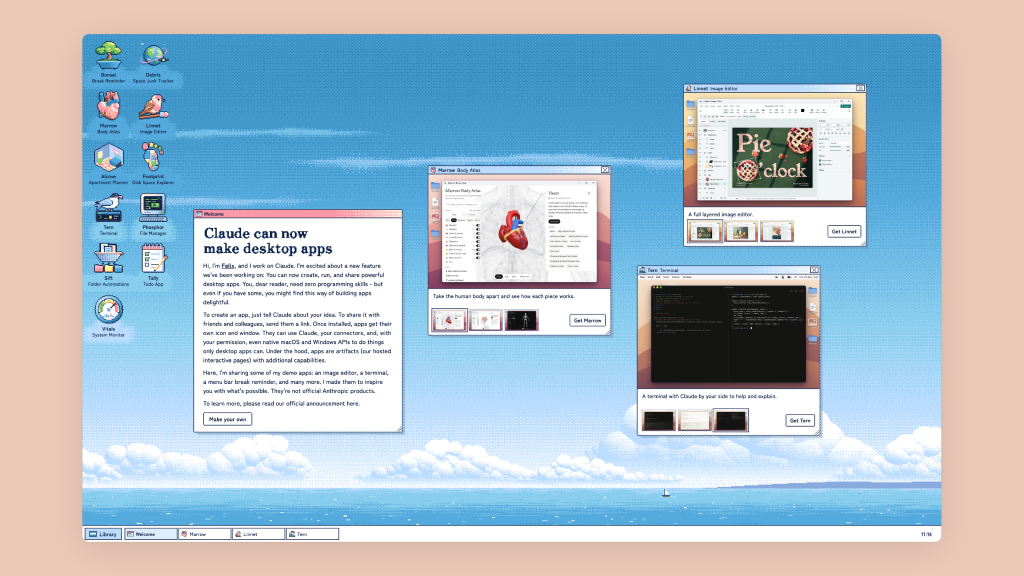
Anthropic has launched “Install as app,” a beta feature that turns a Claude artifact into a standalone Mac or Windows desktop app — with its own icon, its own window, notifications, and, if you grant it, the ability to run programs and edit files on your computer. Why it matters: the small tools people build inside AI chats can now live on the desktop like real software, with no packaging, signing, or API key required.
November 25, 2026 — Anthropic announced the feature on November 24; it is rolling out in beta in Claude for Mac and Windows.
What happened
Starting November 24, 2026, Claude users can install an artifact as a desktop app from the Share menu. The installed app opens in its own window instead of inside Claude, can be shared with other Claude users, and updates automatically whenever the underlying artifact is edited. It runs on your Claude account — there is no separate login — and every request it makes to Claude counts toward your plan’s usage limits.
Anthropic’s own staff examples show the range: Linnet, a layered image editor; Phosphor, a file manager; Sift, which sets folder rules and uses Claude to keep files organized; Tern, a terminal with Claude alongside; and Vitals, a menu-bar app for checking computer performance.
The permission model is the real story
Installed apps operate under three permission levels. At the default level, an app can only do what it could do in a browser. With app permissions, it can request tightly controlled desktop features such as notifications, global shortcuts, and always-on-top windows. At the highest level — full computer access — an app can run programs and read, change, or delete files without asking each time.
Anthropic built in two guardrails worth noting. A permission covers only the current version of an app, so Claude asks again after every update, including your own edits. And full access can only be granted to apps you made yourself or, on Team and Enterprise plans, apps made inside your organization — because Anthropic does not review apps before installation. The beta is rolling out on all plans; it is on by default for Team (with full access off), off on Enterprise until an owner enables it, and unavailable to HIPAA-ready organizations. You must be online and signed in to open an installed app, and Claude Docs, Slides, and Sheets artifacts cannot be installed.
Why it matters
This closes a gap that has limited AI-built tools: they were useful, but trapped in a chat tab. Now a tracker, calculator, or prep page you built in Claude can sit in your Dock or taskbar and nudge you with notifications. Our take for subscribers: start at default permissions, and treat full computer access the way you would treat installing any unreviewed download — only for apps you built and understand. Everything AI, tested starts with not handing a tool more access than its job needs.
Frequently asked questions
How do I install a Claude artifact as an app?
Update Claude for Mac or Windows, open an artifact you use, and choose “Install as app” from the Share menu. No packaging, code signing, or API key is needed.
Is Install as app free?
The beta is rolling out on all Claude plans, including Free. Requests an installed app makes to Claude count toward your plan’s usage limits.
Can an installed Claude app access my files?
Only if you grant full computer access, and only for apps you created (or, on Team and Enterprise, apps from your organization). Permissions are re-requested after every app update.
Sources: Anthropic (Claude blog), Neowin, Notebookcheck